Debugging PHP using Xdebug and Notepad++ : Part I

I am sure all of you have used ‘echo’ and ‘print_r’ to debug PHP.

We all know that this way debugging is hard and you need to remember to remove them from production server.

Well, thanks to xdebug you can now debug, and you don’t need expensive or blotted IDE for that, just plain and simple Notepad++ can do the job.open php.ini in wamp
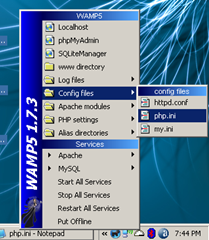
In this post we will setup xdebug and DBGp plugin with Notepad++.

Let’s start by installing xdebug.

  1. Download the latest release of xdebug for PHP version you are using.
  2. Copy xdebug dll file into php’s extension directory, in my case, as I use wamp, it is c:wampphpext .
  3. Now we need to configure xdebug so that it get recognized by PHP, so open php.ini
  4. Add following at the end of your php.ini file
    [xdebug]
    zend_extension_ts="c:/wamp/php/ext/php_xdebug-2.0.3-5.2.5.dll"
    xdebug.profiler_output_dir = "c:/wamp/tmp/xdebug"
    xdebug.profiler_output_name = "cachegrind.out.%p"
    xdebug.profiler_enable = 0
    xdebug.profiler_append=0
    xdebug.extended_info=1
    xdebug.remote_enable=1
    xdebug.remote_handler=dbgp
    xdebug.remote_mode=req
    xdebug.remote_host=127.0.0.1
    xdebug.remote_port=9000
    xdebug.idekey=xdebug
    xdebug.remote_log="c:/wamp/tmp/xdebug/xdebug_remot.log"
    xdebug.show_exception_trace=0
    xdebug.show_local_vars=9
    xdebug.show_mem_delta=0
    xdebug.trace_format=0
  5. Just create a folder ‘xdebug’ in ‘c:wamptmp’ folder.
  6. Finally restart Apache service .

With these steps you have, finished xdebug installation, it is configured for profiling application and remote debugging. Check documentation to know what all these configuration do, and tweak according to your preference.

We will now install DBGP plugin for Notepad++. Make sure you have latest version of Notepad++ is installed.

  1. Download the latest release of DBGp Plugin.
  2. Unzip and move dbgpPlugin.dll file to plugins folder of your notepad++ installation folder, in my case the path is “C:Program FilesNotepad++plugins”.
  3. Check out the readme.txt file, that is bundled with plugin, to make sure we don’t miss anything.
  4. Now open Notepad++, and you should see DBGp option in plugins menu.
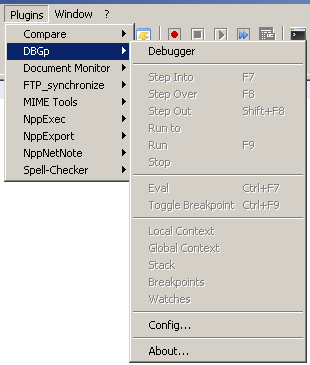
dbgp plugin for notepad++

Well we are now almost finished with setup, only ting remaining is to configure DBGP to listen to right port and we are done.

Goto “Plugins->DBGp->Config” to open the configuration screen of DBGp plugin.
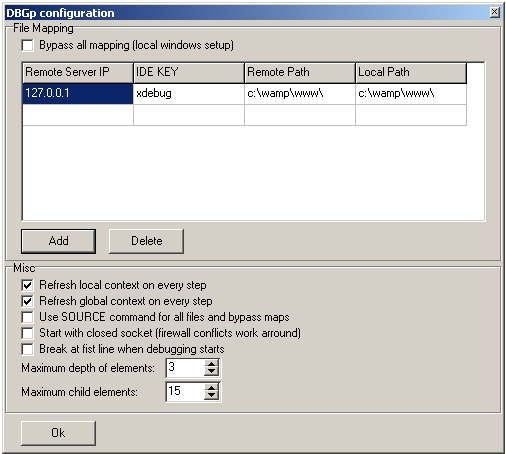
DBGp Configuration window

Fill the details as shown in the image above. IDE KEY should be same to the one you specified in php.ini settings above. Click Ok and you are done.

To start debugging just add “?XDEBUG_SESSION_START=session_name” at end of you url. ‘session_name’ could be anything you want to keep.

Just launched PHPCamp.net a knowledge sharing website for PHP community

Comments

30 responses to “Debugging PHP using Xdebug and Notepad++ : Part I”

  1. Amit Patekar Avatar

    I have gone through the article, really good article, but i am not clear about the last line in your article.

    “To start debugging just add “?XDEBUG_SESSION_START=session_name” at end of you url. ‘session_name’ could be anything you want to keep”
    And
    How to start debugging.

    Can you please explain.

  2. […] return; document.getElementById(‘a273’).innerHTML = urlinfo.total_posts; } In my previous post, I have shown how to configure Xdebug and Notepad++ for […]

  3. […] Debugging PHP using Xdebug and Notepad++ : Part I […]

  4. Vinothbabu Avatar

    Nice Article mate, i think this approach would go well for small and medium sized applications. but when you come with large ones i think IDE is the best way to go for. Zend provides you a much better solution when it comes thousand lines of code to be debugged.

  5. mubahoro Avatar
    mubahoro

    Can we translate this article for other languages? For example Spanish?

  6. Kumar Chetan Sharma Avatar

    Unfortunately the latest release of NP++ and the plugin are not compatible with each other.

    1. Amit Kumar Singh Avatar
      Amit Kumar Singh

      @chetan I don’t think so i am using latest version of Notepad++ for my debugging everyday

  7. […] Debugging PHP using Xdebug and Notepad++ – I am sure all of you have used print statements to debug PHP. We all know that this way debugging is hard and you need to remember to remove them. Here is an easier way. […]

  8. Jitendra Avatar
    Jitendra

    “@chetan I don’t think so i am using latest version of Notepad++ for my debugging everyday”

    Amit, could you please mention version no of your xdebug, notepad and dbgp plugin?

    I’m using xdebug: 2.0.5 with PHP 5.2
    Notepad 5.4.5 and dbgp 0.11

    When I turn on debugger, I always get “Dynamic link library initialization failed’” in notepad and debugger crashes.

  9. Jitendra Avatar
    Jitendra

    I’ve also tried it on another machine with php 5.3 and compatible xdebug and latest:Notepad 5.4.5 and dbgp 0.11 .

    This time no dll error pops up but debugger doesn’t stop at any breakpoint. I’ve wasted 3 days in figuring out the problem. Could someone please help me?

  10. Amit Kumar Singh Avatar
    Amit Kumar Singh
  11. Jitendra Avatar
    Jitendra

    Amit, I’ve already seen your ‘part 2’ but I didn’t see anything specific which could solve my problem. I did exactly as you mentioned still I get above mentioned errors. Thanks.

  12. Amit Kumar Singh Avatar
    Amit Kumar Singh

    Jitendra, then i am sorry i won’t be of much help.. as i need to actully see the error to tell you what is wrong.

    If you followed the steps properly and selected the right xdebug dll for you php then it should work.

  13. MIvan Avatar
    MIvan

    127.0.0.1 is not realy a remote IP.
    How to get working with a remote server?

  14. opolette Avatar
    opolette

    To Jitendra :

    May be it is related to SEF. Have your setup URL rewrite ?
    If yes, try disabling it.
    use xdebug_break(); in your code (instead of just setting breakpoints using DBGp) . and see if it works.

    Best Regards

  15. Jitendra Avatar
    Jitendra

    @opolette : Yes I’m using Apache rewrite but it was working fine with earlier Notepad++ version. Something somewhere went wrong and it stopped working.

    I’d try your suggestions and post the result here.
    Thanks.

  16. David Potter Avatar

    Thank you Jithendra for your article. The documentation for using this plugin is extremely sparse and you got me far enough to start working. With that said, I’m still having trouble getting it working properly.

    I’m using IIS 7.5 on Windows Server 2008 R2 and PHP 5.3.0 and the Firefox Xdebug plugin. Note that when using the Firefox plugin I had to remove the xdebug.idekey setting in my php.ini file.

    When I debug a simple test script, setting a breakpoint doesn’t work at all. The taskbar icon for Notepad++ flashes, but it didn’t break at the line. When I call xdebug_break(), then Notepad++ breaks.

    I tried this same procedure with a larger system (WP.osC, a derivative of osCommerce) and it doesn’t break.

    It would appear that there are some incompatibilities between the Notepad++ DBGp plugin and one of the components in use, maybe PHP 5.3.0 as a previous comment suggested. Too bad, as this is a really nice solution.

    One other problem I ran into. The keyboard shortcuts don’t appear to work at all. I tried pressing F8 to step over and nothing happened.

    If anyone has any ideas on how to solve these problems, I’d love to hear about it.

    Thanks,
    David

  17. Kumar Chetan Sharma Avatar

    I stopped using NP++ the day I moved to Karmic Koala full time, now I use SciTE. You must be aware that NP++ is based on SciTE. If you install PHP-CLI package you can simply press ctrl+F7 to check your code for PHP error etc. Though its not as good as a debugger it still helps a lot. 🙂

  18. Erico Lendzian Avatar
    Erico Lendzian

    Thanks. A long time ago I managed to set up my development environment to use xdebug, but I had to re-install my box and then it was all lost.
    I tested many applications that suposedly had debug capabilities, but all of them fail at one point or the other (mainly debugging a live page opened in the browser)
    For the information of those trying to do the same, I’ll advise them to use firefox with the xdebug extension installed, and all goes perfectly. And set DBG inside Notepad++ to refresh the contexts at all time.

  19. Sandesh Avatar
    Sandesh

    Hi all,
    I am having a unique problem. Cant find the solution anywhere. First I was using Eclipse to debug PHP pages. It worked perfectly with xdebug. Once while clicking debug button I accidentally pressed the cancel button for debugging. Thats when the whole problem started.
    PROBLEM -> while clicking the debug button, my site opens in firefox browser with the address http://localhost/sitabookslive/index.php?XDEBUG_SESSION_START= but the control is not passed back to the editor to start debugging. Instead the site opens up normally and eclipse says Launching: Waiting for xdebug session.
    Now I tried the above method in Notepad++ and the same thing continues here. Even after putting breakpoints in NP++, the control doesnot pass back to NP++ , instead the site opens normally. Could someone please help me out with this. I checked the port, changed the port number, checked xdebug in phpinfo() and everything seems perfect. Netstat says the port no 9000 is in Listening status. dont know how to proceed. Any help is very much appreciated. Thank you.

  20. […] Suchbegriff "notepad++ and php" Treffer auf der ersten Seite: Debugging PHP using Xdebug and Notepad++ : Part I | am i works? BTW: war das ein Crosspost? Wieviele Editoren hast du nun schon durch…? [ironie]Liegt das […]

  21. […] Its been couple of month i started learning php. I am using xampp, php version 5.3.1, notepad++ to edit. I wanted to use a debugger, so downloaded xdebug5.3vc6 32bit version and DBGp plugin, did the changes as mentioned here. […]

  22. […] PDFs with PHP amiworks.co.in This entry was posted in all. Bookmark the permalink. ← York Photo List My Five […]

  23. […] was also Debugging PHP using Xdebug and Notepad++. This entry was posted in Internet, Programming and tagged debugger, php, vim, xdebug by jj5. […]

  24. […] Debugging PHP using Xdebug and Notepad++ : Part I | am i works?. Bagikan :TwitterFacebookLinkedInLike this:SukaBe the first to like this. Entri ini ditulis dalam Uncategorized oleh Wildan Muhlis. Buat penanda ke permalink. […]

  25. Riju Avatar
    Riju

    Thanks You!
    I am a PHP learner from Barpeta, Assam. I have read many article on xdebug but failed to make it work. I read your post and configured according your guidance, IT IS WORKING fine. I am running Notepad++ 6.5.4 with DBGP Plugin 0.0.13.27, WAMP server 2.2.

    GREAT WORK.

    Thanks again.

  26. […] Debugging PHP using Xdebug and Notepad++ : Part I | theCancerus – “@chetan I don’t think so i am using latest version of Notepad++ for my debugging everyday … notepad and dbgp plugin? I’m using xdebug: 2.0.5 with PHP 5.2 Notepad 5.4.5 and dbgp 0.11. When I … I did exactly as you mentioned still I get above mentioned errors. Thanks. Reply. Amit Kumar … […]

  27. […] Debugging PHP using Xdebug and Notepad++ : Part I | theCancerus – 28 thoughts on ” Debugging PHP using Xdebug and Notepad++ : Part I … 2.0.5 with PHP 5.2 Notepad 5.4.5 and … You must be aware that NP++ is based on SciTE. If you install PHP-CLI package you can simply press ctrl+F7 to check your code for PHP error etc. Though its not as good as a … […]