Category: how too?

  • How To Catch PHP Fatal Error In CodeIgniter

    My last few blog post’s are result of the project that I am currently working on, and this blog is also in that series.

    We needed to catch PHP Fatal Errors in the production environment and notify about it to developers, also at the same time, showing our beautiful fail whale page to user instead of ugly error or a white screen of death.

    Here I will show you how to do this in CodeIgniter, though credit for this idea goes to hipertracker.

    First of all you will need to setup a hook, so update your hooks.php file with following code

    	$hook['pre_system'][] = array(
    	    'class'    => 'PHPFatalError',
                'function' => 'setHandler',
                'filename' => 'PHPFatalError.php',
       	    'filepath' => 'hooks'
    );

    Now put the code shown below in PHPFatalError.php file in your applications hooks folder.

    This is the simplifed version of what I have done, so please update handleShutdown function as per your needs.

    Check out PHPCamp a place to share news, views and articles that are useful to PHP community.
  • PHP5 patch for FunctionList plugin of Notepad + +

    As you may know Notepad++ is my preferred development tool for PHP, and two months back I found FunctionList plugin that shows list of function in a opened PHP file, and it increased my productivity almost immediately.

    Only drawback was that it showed just function list and not variables.

    And today I found this neat patch of this plugin by Geoffray Warnants which now makes it even better with icons and also showing variable.

    This is how it looked before

    functionlist-default

    This is how it looks after the patch

    functionlist-php-patched

    Download the patch here (post is in French, scroll down to download the patch)

  • Installing PEAR and PHPUnit on WAMP and Windows 7

    In the project that i am currently working on, we decided to use PHPUnit for doing our unit testing, and i found that it was not a straight forward thing to install that I had thought it would be. I had to start by installing Pear, and as soon as i type ‘go-pear’ in command prompt and pressed enter key I got my first error.

    So here are the steps needed to install PEAR and PHPUnit error free on WAMP.

    So let’s start with PEAR, please note my Wampserver is installed on drive ‘H’,  substitute it with your own. Also when this tutorial was written, php was in php5.3.0 folder, please use the path as per your current setup.

    (more…)

  • Simple Way To Add Global Exception Handling In CodeIgniter

    I am working on a project where we needed to capture exceptions at a global level instead of doing it at every step as they were not critical, but important for us to know.

    The idea was that whenever such an exception occur on production we should send an email to developers mailing list so that someone can investigate it.

    As usual I did a quick google search and i found two forum posts in CodeIgniter and one on stackoverflow, but they all fall short as CodeIgniter does not set’s any default exception handlers they way it sets the native error handler.

    So here is a quick tutorial on how you can do that.
    (more…)

  • How to get Latitude/Longitude from an address (or Geocoding ) using PHP

    While Google’s documents for maps API does good job in showing how to get lat/long from an address in JavaScript they do not really show any example of doing the same with PHP.


    So to make you life simple here is a small script in PHP that does that.


    $geocode=file_get_contents('http://maps.google.com/maps/api/geocode/json?address=573/1,+Jangli+Maharaj+Road,+Deccan+Gymkhana,+Pune,+Maharashtra,+India&sensor=false');
    
    $output= json_decode($geocode);
    
    $lat = $output->results[0]->geometry->location->lat;
    $long = $output->results[0]->geometry->location->lng;


    The line above makes a request to Google maps API. Passes the address, and receives the response in JSON format.

    The URL has following options

    http://maps.google.com/maps/api/geocode/output?parameters

    where output can be 1) JSON or 2) XML

    For more details about parameters check out the Google’s geocoding documentation.

  • How To Fix MySQL Error – Error Code 30

    Yesterday was one of those days when things that can go wrong went wrong and today was MySQL day, and problem when accessing any table on a live site resulted in following error

    MySQL Error - Can't create/write to file '/tmp/#sql_7d3f_0.MYI' (Errcode: 30)

    It took me some time to figure out that the error was due to /usr/tmpDSK getting corrupted, and and not really a problem with MySQL or our database as we were thinking all this time, and as usual google came to rescue.

    Here are the steps to fix this for cpanel users…  run the following commands in the order mentioned

      
    /usr/sbin/lsof /tmp
    /bin/umount -l /tmp
    /bin/umount -l /var/tmp
    /bin/rm -fv /usr/tmpDSK
    /scripts/securetmp

    This will create a new /tmp partition for you and the problem will go away. By the way error code 30 means that file system is read only.

  • Where is MySQL Gone Away?

    Last Sunday I got to work on a very interesting problem in WordPress which I initially thought could be solved in like 5 mins, but alas it took me almost 7 hours before I found and fixed the problem.

    Let me describe the problem, I was running a simple xml parsing script whose task was to parse the xml file and insert the content into WordPress database as a post, everything was working fine except the ‘INSERT’ statement was failing with out any errors. Basically everything would run but nothing would get inserted into database and no errors. We had used the ‘wp_insert_post’ function in  ‘post.php’ file to handle the insertion of post, which was returning ‘0’ instead.

    After lot’s of time spend checking and cross checking the sql statements for error and PHP code logic, i finally found the problem which was a small kinda cryptic error ‘MySQL server has gone away’ for every single query that was getting executed in the script.

    Well, a quick google search took me to MySQL manual page where it list bunch of possibilities on why the error might be coming.

    To me the most logical one were

      1. You tried to run a query after closing the connection to the server. This indicates a logic error in the application that should be corrected.
      2. A client application running on a different host does not have the necessary privileges to connect to the MySQL server from that host.
      3. You have encountered a timeout on the server side and the automatic reconnection in the client is disabled (the reconnect flag in the MYSQL structure is equal to 0).
      4. You can also get these errors if you send a query to the server that is incorrect or too large.
      5. You are using a Windows client and the server had dropped the connection (probably because wait_timeout expired) before the command was issued.

    I investigated each one but it turned out that because a query was taking a bit to long to execute MySQL closed the connection and refused all further request from the client.

    So you might be wondering what was the Solution to this problem.

    Well Rob of Rob’s notebook had the almost perfect solution for it. He created a replacement file for ‘wpdb.php’ which takes care of this problem, yeah it is temporary and you have to remember to replace this file every time you do an WordPress upgrade but it works.

    If you are facing this problem go download it and replace you ‘wpdb’ file and save yourself some time.

    Check out PHPCamp.net a article sharing website relevant to our own PHP community
  • Media Manager Browse Button Disabled In Joomla

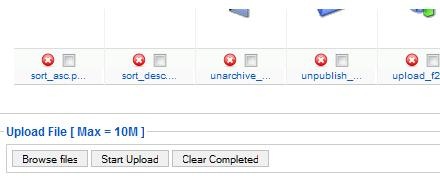
    Problem : No matter how many time you click on the media manager’s browse button nothing happens. It used to work few days back but not any more.

    It is as if the the media manager buttons has been disabled.

    media_manager_problem

    If you were facing these problems it is most probably due to the Flash uploader not working properly with Flash version installed on your system.

    Solution:

    The simplest solution to fix this issue is to go to,

    Global Configuration –> Systems –>Media settings.

    And select ‘No’ for ‘Enable Flash Uploader’ setting, and save the settings.

    mediamanager_config

    That’s it, this simple. Now go back to you media manager and upload files to your heart’s content.

  • How to use SVN and Git together to get the best of both worlds in Windows

    I have been using SVN to manage my source code for last three years, I can say I am quite happy with it, except for one problem, it was not possible to commit the code unless I was directly connected to my office network.

    Then I heard about DVCS and Git. I found solution to one of my big problem, ability to commit code while I am not connected to office network, and share code with my teammates.

    Their was only one small problem we didn’t wanted to loose the benefits of centralized repository, and we use Windows  OS( let’s not get into windows vs linux, i will win). So last 3-4 months I was looking for different DVCS systems with better windows support and i experimented with Mercurial (TrototoiseHg is good), but i think Git wins the race of DVCS hands down, and with popularity of GitHub I don’t see much choice here.

    And finally I found about git-svn, and I was on my way.

    Here are the commands and steps that you can use to manage Git and SVN together.

    1. Create a working copy(or actually a git repository ) using
      git svn clone –s <path to ur svn rep, eg https://akjoomgallery.googlecode.com/svn/trunk/>
    2. Get the source from svn repository to your git repository using
      git svn fetch

      (only needs to be done first time, it is slow and time consuming process)

    3. When you need to update your working copy  you use
      git svn rebase
    4. When you need to commit back to svn repository just use
      git svn dcommit

    I used above commands in Git bash shell that comes with Git.

    Also note their would be time when we have some changes in the Git repository that is not yet ready for commit, but we need to update our repository and Git won’t let you do that, without committing them (rebase will always give error) in such situation you use following set of commands

    git stash
    
    git svn rebase
    
    git stash apply
    
    git stash clear

    Update:

    And if you don’t want to these things manually here is my favourite tool that does that using nice GUI and perfect windows integration TortoiseGit

    I have written this a month back before I found TortoiseGit, so this is now just for reference, and to get me back to my blogging.

    Have fun.

  • Simple JavaScript ‘Frame Busting’ Code

    Here is a quick JavaScript  code that you can use if you want to make sure that no one should be able to show your website in an IFrame.

    <script type="text/javascript">
    if (top !=self) {
       top.location=self.location;
    }
    </script>

    Just put this code in head section of your html page, and it will ensure that your page always get’s displayed outside the frames.